How to Set Up IPTV on an Amazon Fire Stick
A simple checklist for preparing your Fire Stick, installing a compatible player and entering your subscription details.
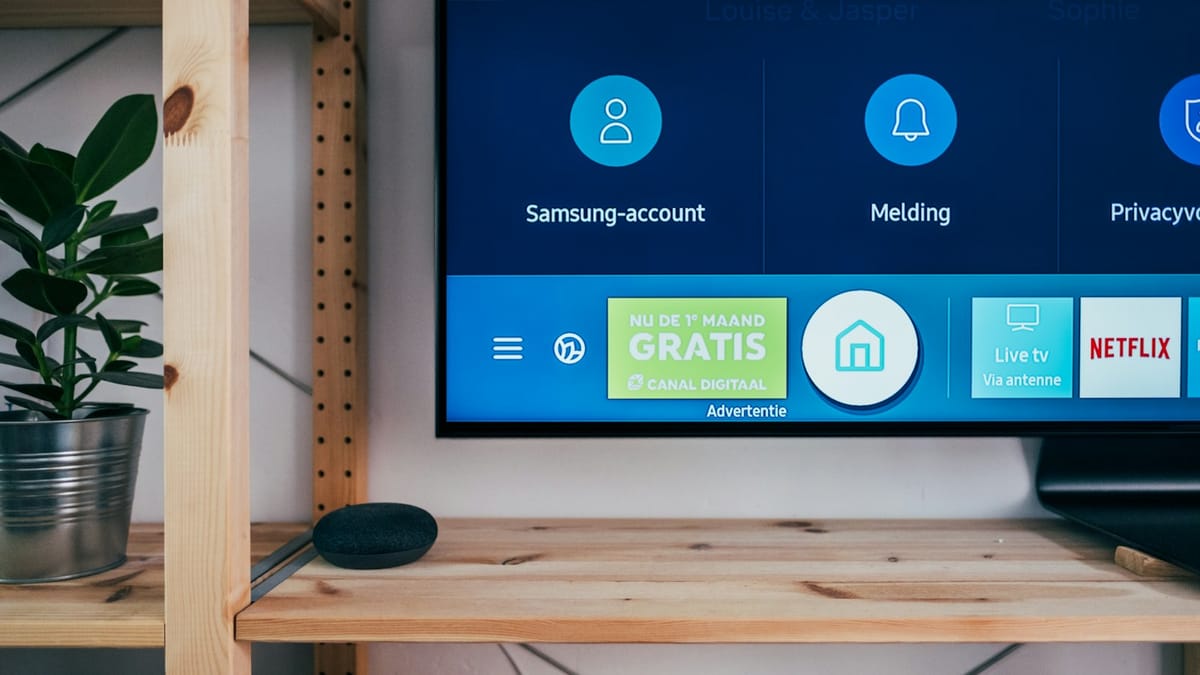
Setting up IPTV on an Amazon Fire Stick takes only a few steps. Before you begin, connect the device to your television and make sure your internet connection is stable.
1. Prepare your Fire Stick
Connect your Fire Stick to an HDMI port, join your Wi-Fi network and install any available system updates. A current system helps compatible streaming apps run reliably.
2. Install a compatible IPTV player
Search the Amazon Appstore for a reputable IPTV player. The player organizes your subscription; it does not normally include channels by itself. Only download apps from sources you trust.
3. Enter your subscription details
Open the player and choose the sign-in method supplied with your order. Enter your details exactly as provided, then allow the channel and on-demand libraries to load.
4. Test your connection
Start with an HD channel before trying 4K. If playback stutters, move closer to your router, use a suitable Ethernet adapter or test another network. For 4K, a stable connection of 25 Mbps or faster is recommended.
Need a hand?
Send your device model and a description of the issue to GetIPTV support on WhatsApp. Never share your full subscription credentials in a public forum.
Common questions
- How do I install IPTV on Fire Stick?
- Update the Fire Stick, install a trusted IPTV player from the Appstore and enter the details supplied with your order.
- Why is IPTV buffering on Fire Stick?
- Buffering is usually caused by weak Wi-Fi or congestion. Test near the router or use an Ethernet adapter.
More useful guides
What Internet Speed Do You Need for 4K Streaming?
Understand the difference between download speed and stability, with practical recommendations for HD and 4K viewing.
Read the guide